
Live Weather
 Highlights and Use Cases
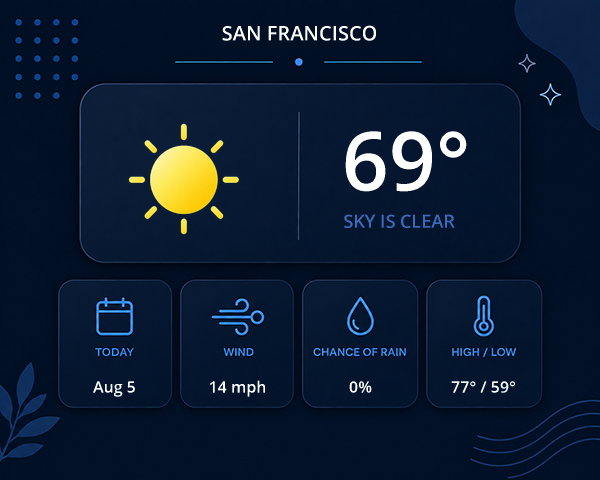
Live Weather is built into Personalized Images and Rule Set Images. Weather is resolved when the image is opened, so your creative can show timely local conditions, forecasts, and weather-driven content without rebuilding the email.
Good to know - Weather elements can target Today, Tomorrow, or up to 6 days out. You can combine weather with text, images, charts, calendars, merge tags, data sources, and other Studio layers.
Use cases:
Show products or content relevant to current weather conditions
Highlight the forecast for an upcoming trip / hotel stay
Include the high and low temperature in a daily newsletter
WATCH THE VIDEO
How it Works
1. Start with a Weather template
From Create New Image, choose Weather to open the starter gallery. Select a light or dark template, from compact one-line weather banners to full forecast cards and multi-day layouts.
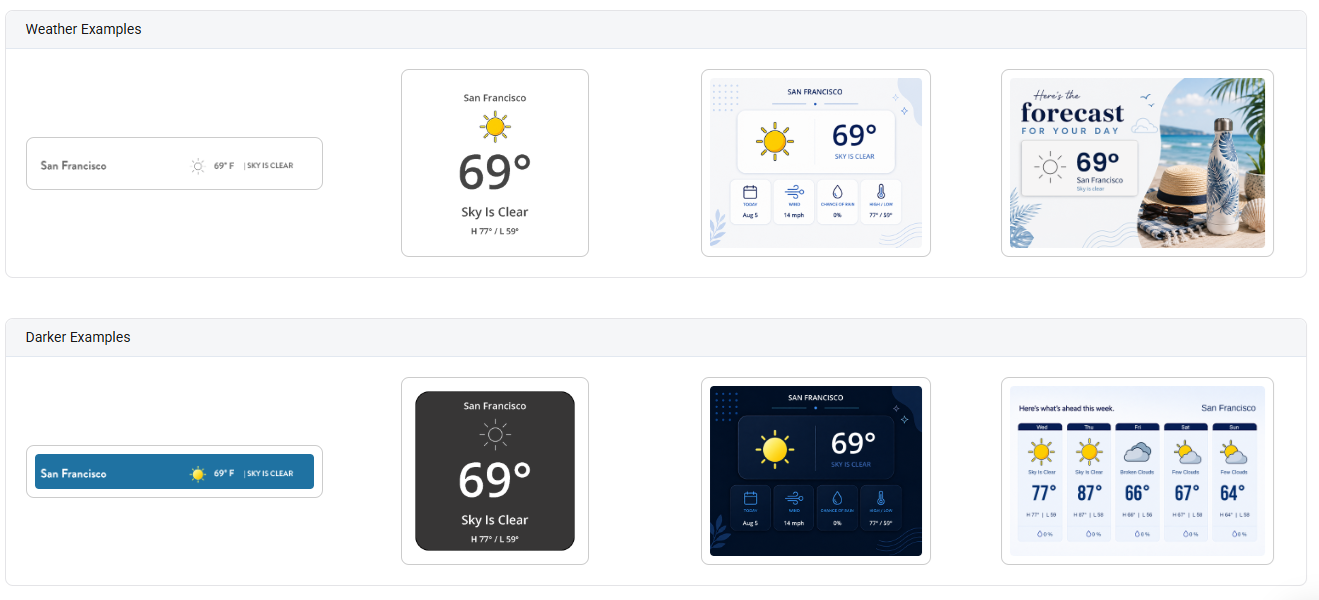
Choose a starter Weather template, then customize it in Studio.
2. Add or edit Weather fields
In Studio, choose Weather Field from the Advanced Elements panel. Select the forecast day and the field you want to display, then click Use Field. You can also insert a prebuilt 3-day, 5-day, or 7-day forecast strip.
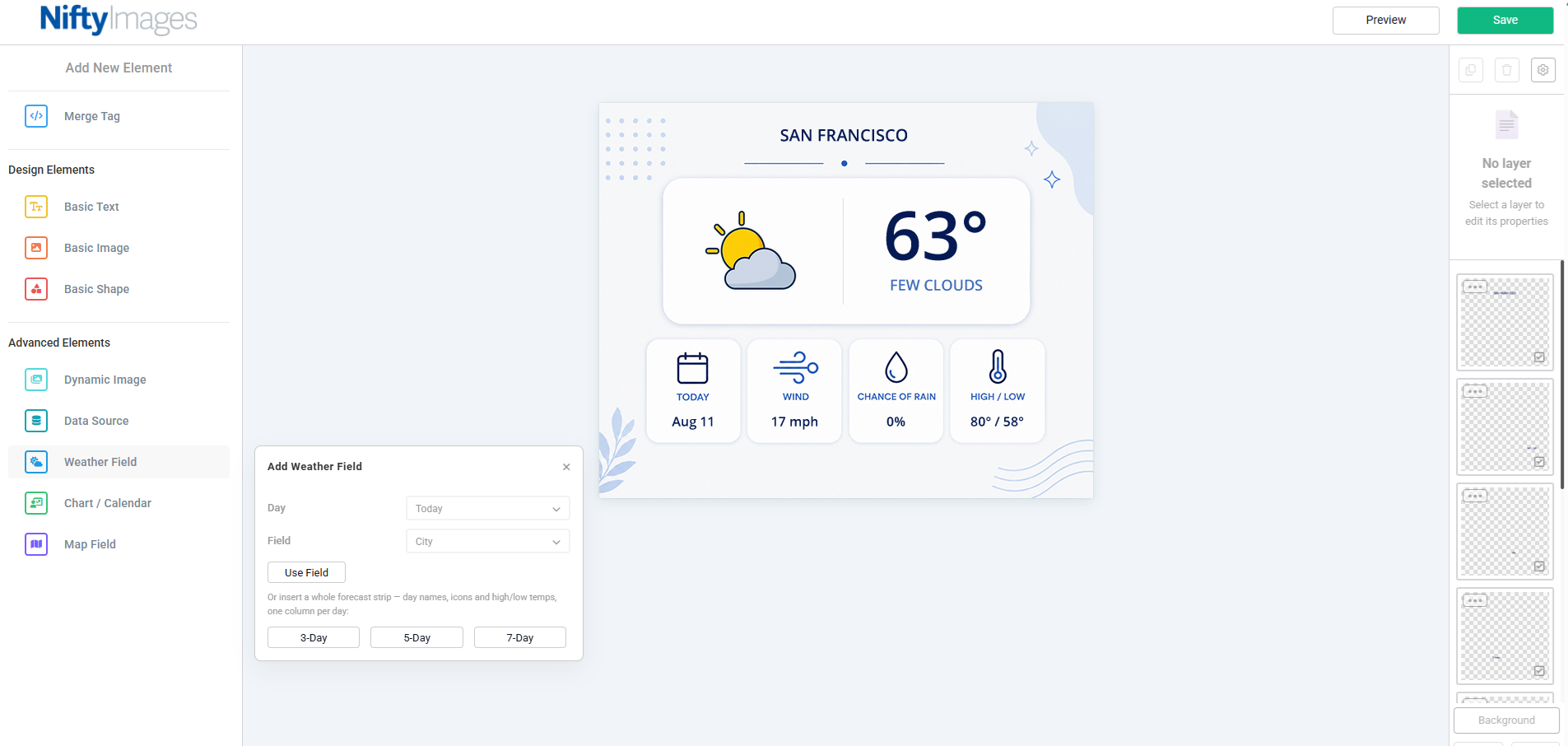
Add individual weather values or insert a multi-day forecast strip.
Available weather values include:
City | Low Temp F° / C° |
Condition Text | High Temp F° / C° |
Condition Icon | Current Temp F° / C° |
Rain Chance | Low Temp (Auto) |
Day Name | Current Temp (Auto) |
Date | High Temp (Auto) |
Humidity | Wind mph / km/h |
Wind (Auto) |
Weather icons - Weather Icon layers map forecast conditions such as these below. You can use the ready-made icon sets or upload your own branded artwork.
Default weather icons:
|
|
|
|
|
|
|
|
|
|
|
|






3. How the recipient’s location is determined
NiftyImages resolves weather location at the moment the image is opened. The lookup order is:
- Latitude / Longitude in the image URL — Most accurate option.
- ZIP / Postal Code in the image URL — Recommended when you already collect subscriber location data.
- IP address — Used when no location override is provided. It identifies the recipient’s general area rather than an exact street address.
Best practice If you have a subscriber ZIP/postal code or coordinates in your ESP or CRM, pass that value into the image URL with a merge tag. This gives you a more reliable location and continues to work when an email client uses an image proxy. |
Weather Options
The More Options tab on the final code snippet page in the setup explains location resolution and common forecast differences.
How is weather determined?
Weather is looked up for the recipient's location at the moment they open your email. We resolve that location in this order:
- 1. Latitude / Longitude on the URL. First we look for ni_weather_lat / ni_weather_lng — an exact spot, the most accurate option.
- 2. Zip / Postal Code on the URL. If there are no coordinates, we look for ni_weather_zip — nearly as accurate, and usually the easiest to collect at signup.
- 3. IP Address. If neither is provided, we look up the IP the open came from — the least reliable option. It places the recipient in the right area, not at an exact spot, and it can't work at all behind privacy proxies (Google Webmail, Yahoo Webmail, Apple Privacy), which hide the real IP.
- When the location can't be determined (a proxy open) or no forecast is available (a rare provider outage), weather text shows its Fallback Text and condition icons show their Else / Default image.
Why don't the temps match my phone?
Small differences from your phone's weather app or a weather website are normal:
- Different forecasters disagree. Every app and website uses its own forecast model. They agree closely on today and tomorrow, but 4–7 days out they can differ by several degrees — nobody's crystal ball reaches that far.
- Slightly different spots. An IP address places the recipient in the right area, not at an exact street address, so the reading can come from a nearby part of town.
- Forecasts move all day. Forecasts are revised continuously, and we briefly cache them so your images render instantly — a value can trail the very latest revision by a few minutes.
4. Override location with merge tags
After saving your image, open the More Options tab to view Weather Options and Weather Overrides. Add your ESP/CRM merge tag to the appropriate weather parameter in the image URL.
Override | URL parameter | Use it for |
|---|---|---|
ZIP / Postal Code | ni_weather_zip | Pass the recipient’s known ZIP or postal code. |
Country | ni_weather_country | Use the two-letter country code with postal codes outside the U.S. |
Latitude | ni_weather_lat | Specify exact latitude. |
Longitude | ni_weather_lng | Specify exact longitude. |
Units | ni_weather_units | Force c or f instead of automatic units. |
Example: <img src="https://img1.niftyimages.com/.../?ni_weather_zip=*|ZIP|*&ni_weather_country=US" />
Replace *|ZIP|* with the merge-tag syntax used by your ESP. You can use the same approach with latitude/longitude fields when those are available in your subscriber profile.
Weather Overrides provide copy-ready URL examples for ZIP/postal code, coordinates, and units.
5. Temperature units, localization, and fallbacks
• Automatic units: Temperature displays in °F or °C based on the recipient’s country. You can force a unit with ni_weather_units=c or ni_weather_units=f.
• Localized day names: Day names automatically localize to the recipient’s language.
• Image proxies: Gmail, Yahoo, Apple Mail Privacy Protection, and other proxies can hide the recipient’s IP location. When accurate weather matters, pass a ZIP/postal code or coordinates in the URL.
• Fallback behavior: If a location cannot be resolved or weather is temporarily unavailable, Weather layers use their configured fallback text/image. Weather-based Rule Set conditions safely evaluate false so the Rule Set can continue to another rule or its default image.
6. Target content with Weather Rule Sets
Weather can also be used as a condition inside Rule Set Images. This lets one image URL automatically serve different creative based on the recipient’s forecast when the image is opened.
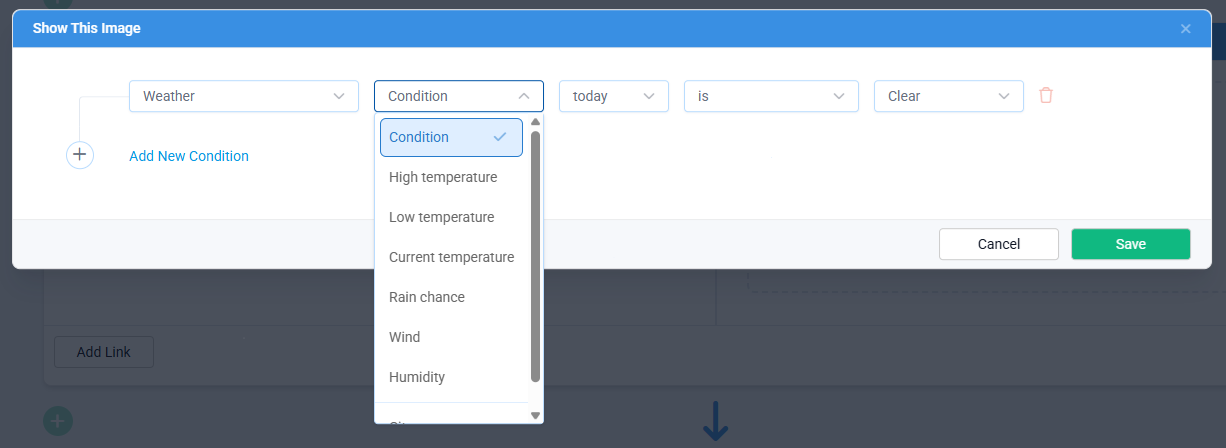
Add a Weather condition to a Rule Set to choose which creative is shown.
Available Weather rule fields include:
- Condition
- High temperature
- Low temperature
- Current temperature
- Rain chance
- Wind
- Humidity
How it works: Choose Weather as the rule type, select the weather field, choose the forecast day (Today through the available forecast window), set the comparison, and enter the value or condition to match. You can combine Weather with additional Rule Set conditions when needed.
Example Show one image when Today’s condition is Clear, another when rain is expected, or switch an offer when the current or forecast temperature crosses a threshold. |
Fallback behavior: If weather cannot be resolved, the Weather condition evaluates false and the Rule Set continues to the next rule or the default image.
Live at open Weather is resolved when the image renders, so recipients see the latest available forecast rather than a forecast captured when the email was sent. |
Related: Personalized Images Knowledge Base