Slides
Slides are a simple way to show several products, messages, or personalized moments in a single image - without relying on fragile interactive carousel code.
Highlights and Use Cases
- Combine 2-5 slides by default into a single animated GIF..
- Use uploaded artwork, externally hosted images, or supported pre-built NiftyImages as slides.
- Create product carousels, multi-message hero images, personalized recap experiences, promotional banners, and always-on sequences.
- Live NiftyImage slides can update at open, so personalized data, charts, weather, maps, and other supported content can stay current.
- Slideshows use a standard NiftyImages image URL and can be placed in campaigns like a normal image.
From Create New Image, choose Slides to begin building an animated GIF.
How it Works
1. Create a new Slideshow
From 'Create New Image', choose 'Slides'. Start by adding at least two slides. The output dimensions are initially based on the first image and can be adjusted within your account limits.
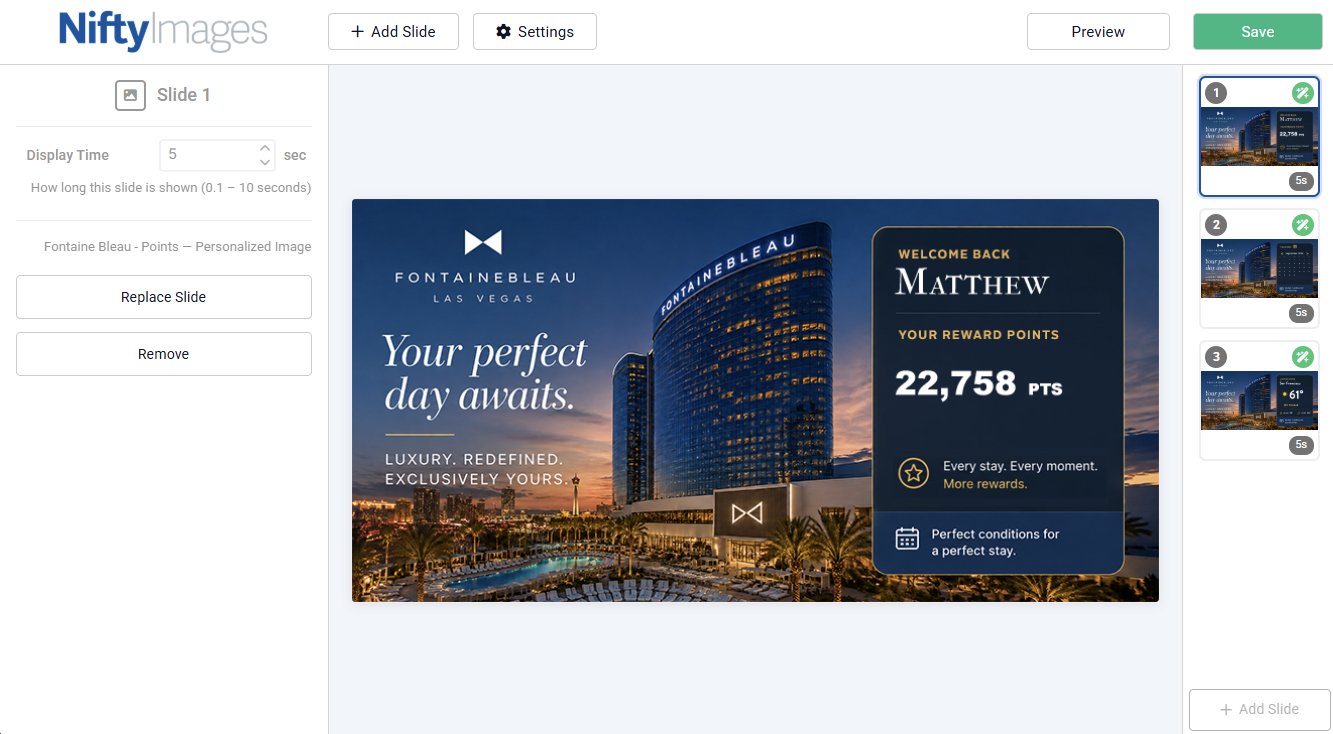
The Slides editor uses a visual workspace with a slide rail for adding, selecting, and reordering frames.
2. Choose what each slide displays
Each slide can come from one of three sources:
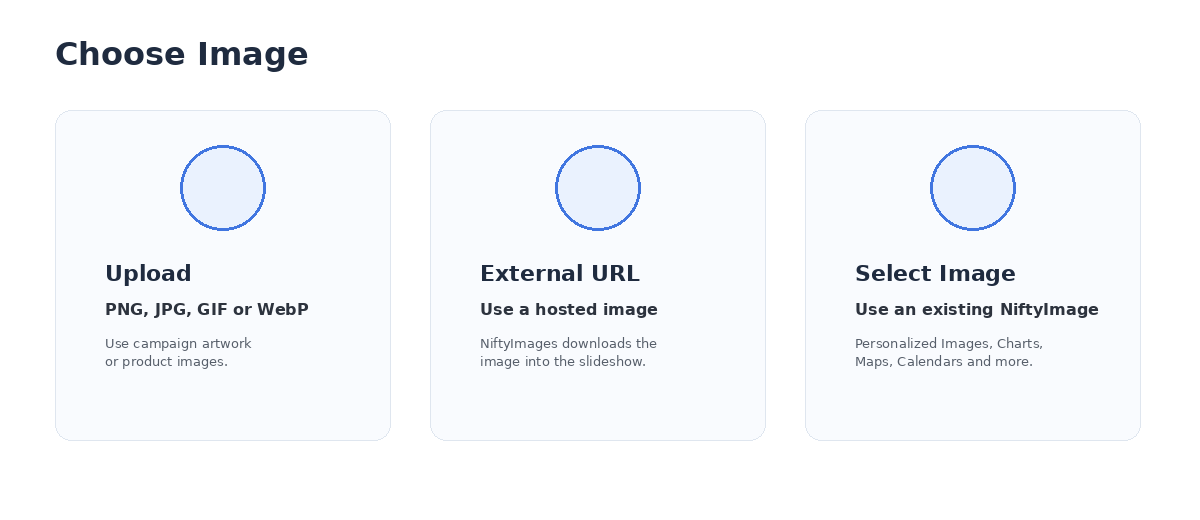
- Upload - PNG, JPG, or GIF.
- External URL - Point to an image hosted by your brand. NiftyImages downloads the image and fits it to the slideshow canvas.
- Select a NiftyImage - Use an existing supported NiftyImage, including Personalized Images, Charts, Barcodes, Calendars, Maps, and Weather-enabled Personalized Images.
Not every NiftyImage type can be used as a slide. Timers, A/B Split Tests, Polls, Scratchers, Social Signals, other Slideshows, Rule Sets, and legacy image types are not supported as slideshow frames.
3. Set timing, order, and looping
- Drag slides into the order you want them to play.
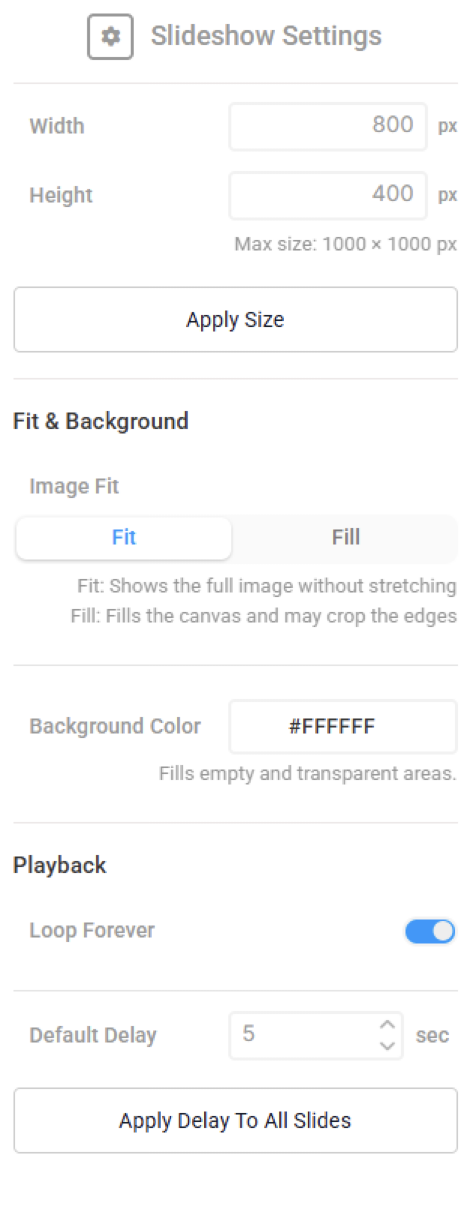
- Set a different display duration for each slide, from 0.1 to 10 seconds.
- Choose Loop Forever, or set a specific number of loops. A finite loop stops on the final frame.
- Use Fit to show the entire source image without upscaling smaller artwork, or Fill to cover the canvas and crop overflow.
- Choose a background color for letterboxed areas and for flattening transparency into the GIF.
4. Preview and save
Preview your animated slideshow before saving to check timing, personalization, and file size.
Static slideshows are saved as a GIF, while slideshows containing live NiftyImages update with current data when opened.
5. Add the Slideshow to your campaign
After saving, use the production image URL or image tag from the Slideshow details page and place it in your email or other supported campaign just as you would a standard image.
Good to know: the entire animated GIF has one click destination. Individual slides cannot have separate click-through links. |
Using Live NiftyImages as Slides
Combine static images with live NiftyImages to create personalized, dynamic slideshows that update when opened.
Supported live slides include:
- Personalized Images
- Charts
- Weather
- Maps
- Calendars and Barcodes
Merge tags and other dynamic data automatically pass through to your live slides. If a live slide cannot load, it is simply skipped so the rest of the slideshow continues to work.
Common Use Cases
Use Case | How to Use Slides |
E-commerce product carousel | Cycle through several products or product views in one hero image. |
Multi-message hero | Rotate offers, benefits, announcements, or seasonal messages without adding more vertical email space. |
Personalized recap | Build a Wrapped-style sequence with a title card, personalized summary, chart, and closing CTA. |
Promotional storytelling | Use a sequence of campaign artwork to introduce an offer, explain it, and finish with the action. |
Compatibility and Tracking
- Slideshows render as animated GIFs in email clients that support GIF animation.
- Clients that do not animate GIFs gracefully fall back to the first frame, which is why the first slide should communicate the most important message.
- The Slideshow itself tracks opens and clicks like other NiftyImages. Live child images rendered inside it do not receive separate open counts.
- One click destination applies to the complete GIF.