
Social Signals
Social Signals renders a live engagement counter as a standard image. Each click—or each open, depending on your setup—can increase the count, so later viewers see the audience activity building in real time.
Why use it? Create visible momentum around promotions, launches, events, products, content, and limited-time offers without scripts, AMP, or special email-client support. |
WATCH THE VIDEO
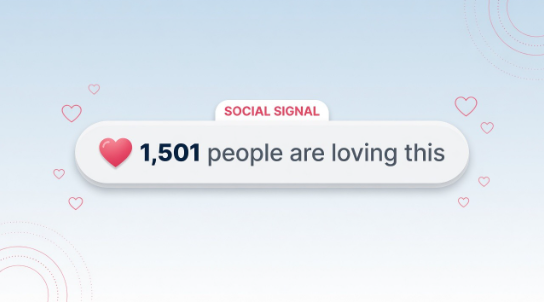
A Social Signal can turn live audience activity into visible social proof inside the creative.
1. Start with a Social Signal
Choose a ready-made Social Signal template, upload a background, or start from a blank canvas. The examples are designed to be edited directly in Studio.
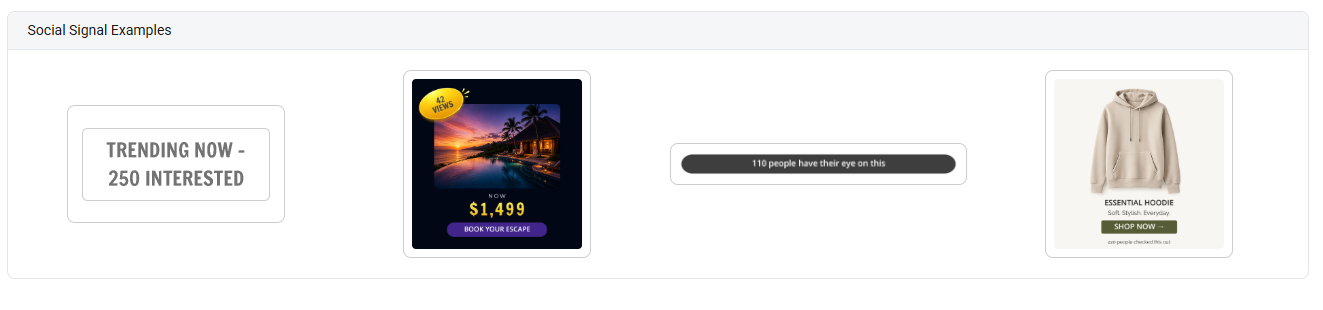
Example starter templates for live social-proof counters.
2. Design the counter layer
The Signal Counter is a layer on the full Studio canvas, so it can sit alongside normal text, images, shapes, merge tags, Data Sources, weather fields, and other design elements.
- Customize the counter text, font, colors, separators, and formatting to match your brand.
- Use a Seed Offset to add a fixed amount to the displayed number. The real count is still used for threshold logic.
- Set a Minimum Count to show fallback text—or hide the counter—until enough genuine engagement has accumulated.
- Use a default-image threshold if you want to show a separate creative until the real count reaches your chosen level.
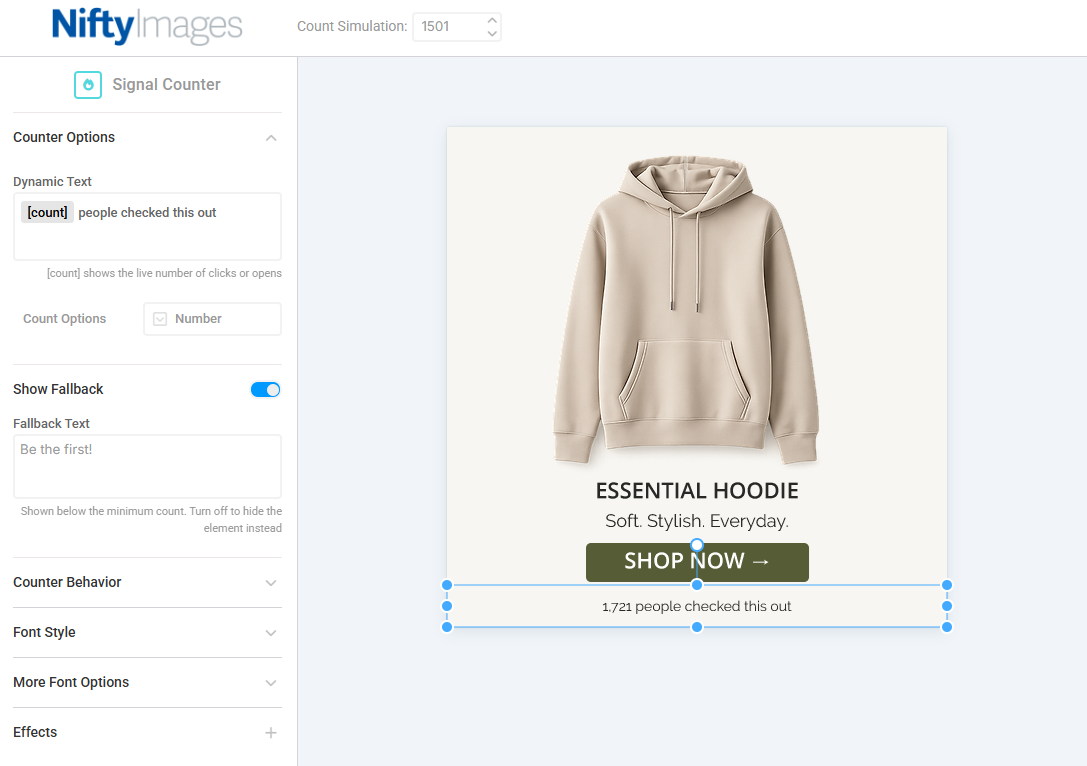
Signal Counter layer settings, including fallback, seed offset, and minimum count.
3. Choose what counts as a signal
- You will choose clicks or opens as the counter AFTER setup in the More Options tab
- Clicks (default): each click increases the counter, then forwards the subscriber to your destination URL or Data Source link.
- Opens: each render of the image increases the counter; no click is required.
- For once-per-subscriber counting, add the standard nuid parameter using your ESP/CRM merge tag.
Unique counting Without nuid, every qualifying open or click can count. With nuid, the same subscriber is counted once for that signal. |
4. Reuse one design with fresh counters
Use the signal_key parameter when you want one Social Signal design to maintain separate counters for different campaigns, products, listings, or other items.
Use | Example |
Fresh campaign | signal_key=SUMMER_SALE |
Per-item count | signal_key=PRODUCT_ID (or your product/listing merge tag) |
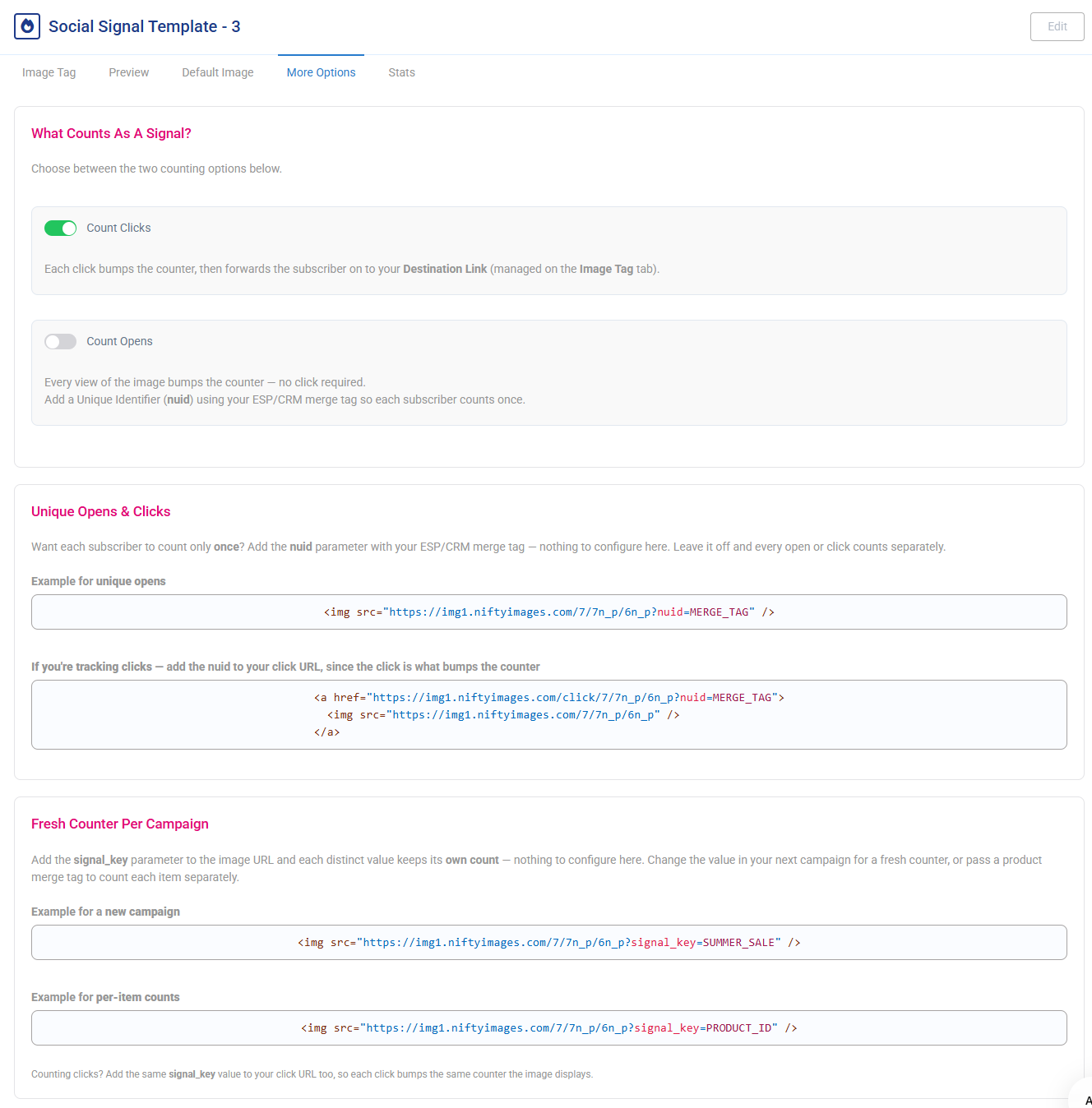
More Options shows click/open counting, nuid for unique subscribers, and signal_key for independent counters.
Common use cases
- Flash sales and FOMO: “X people are loving this deal” as engagement grows across the send.
- Launches and events: show live interest building around a release, registration, or announcement.
- Catalogs and listings: use signal_key with a product or listing merge tag for independent counts from one design.
- Loyalty, content, and limited-time offers: highlight participation or reader interest, or pair Social Signals with a countdown timer for added urgency.
Testing & sending
- Counts update quickly at low volume so test sends can demonstrate the counter before launch.
- Use the reset control before the real campaign if you want to zero test activity.
- Once ready, add the NiftyImage to your email like any standard image. No JavaScript, iframe, or special email-client support is required.