
Social Share
Whether it's a loyalty milestone, personal achievement, year-in-review image, or special offer or sale, subscribers can share their unique content with friends and followers, helping extend your campaign's reach to new audiences.
Unlike traditional social sharing, every subscriber shares their own personalized image, not a generic version of your campaign.
Getting Started with Social Share
Social Share is available for Personalized Images and can be added to new or existing images.
Step 1: Set Up Your Social Share Page Styles
Before adding Social Share to an image, you can create and customize your Page Styles.
- Log in to your NiftyImages account.
- Select Social Share from the home page or left sidebar.
- Choose an existing Page Style or create a new one.
- Customize the appearance of your sharing page.
Page Styles control how your shared images are presented to subscribers before they share.
You can customize:
- Page background color
- Headline and message visibility
- Share button text and color
- Social network button visibility and color
- Optional call-to-action button and colors
You can edit, duplicate, or create additional styles to match your branding and different campaigns. Each account can maintain up to 12 Page Styles.
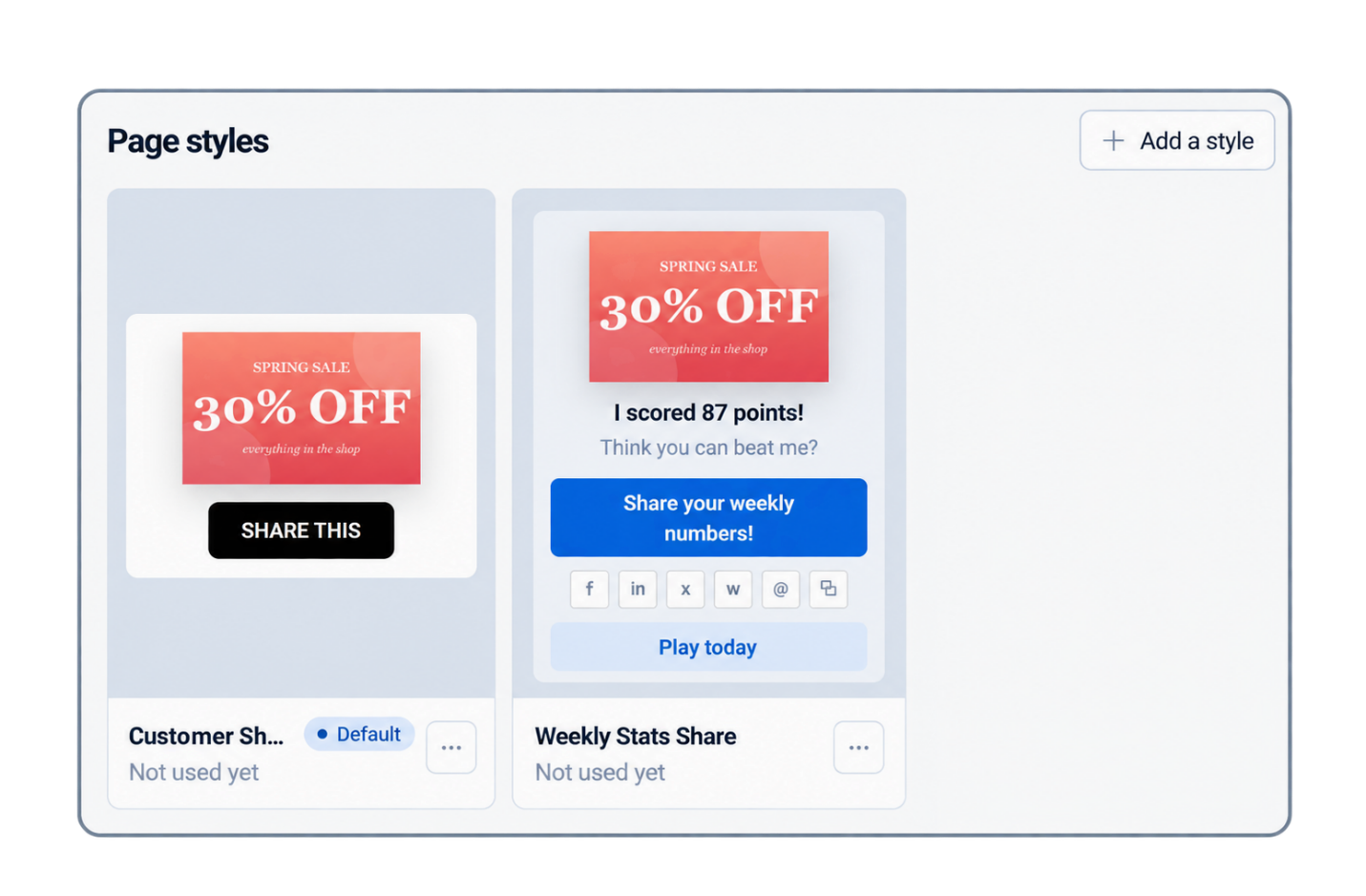
The Page Style editor provides a live preview so you can see how your sharing page will look as you make changes.
Tip: Set up your preferred Page Styles first so they're ready to use across multiple images. You can then customize the sharing content for each individual image.
Step 2: Select Your Personalized Image
Once you've configured your Page Styles, you're ready to add Social Share to an image.
- Open an existing Personalized Image or create a new one.
- Navigate to the image's link settings.
- Select Use Social Share as your link type.
- Choose the Page Style you'd like to use.
Note: Social Share is designed for Personalized Images. Animated image types, including Countdown Timers and Slideshows, are not supported.
Step 3: Customize Sharing for Your Image
After selecting a Page Style, you can further customize the sharing experience for that specific image.
Headline
Add a headline that appears alongside the shared image and serves as the post title on Facebook and LinkedIn.
Example: "Check out my monthly stats!"
Message
Include an optional message to provide additional context or encourage engagement.
Example: "I just hit a new milestone! Check out my results."
Both fields support merge tags, allowing you to personalize the sharing experience with each subscriber's information.
If your image contains personalized information, such as a name, score, or loyalty balance, those values can also appear in your sharing headline and message.
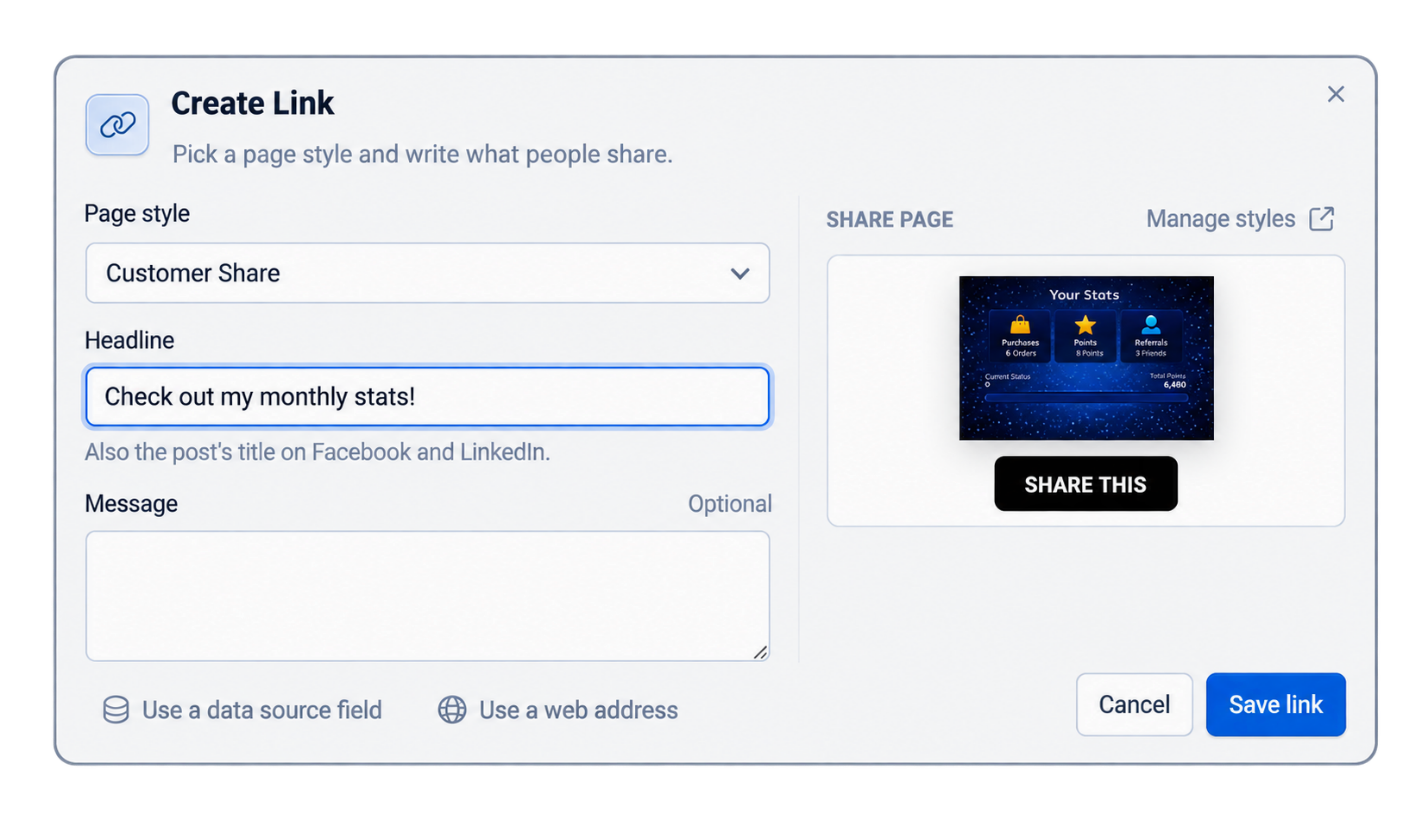
Tip: You can use the same Page Style across multiple images while giving each image its own unique headline, message, and sharing experience.
Step 4: Add a Call-to-Action (Optional)
Want to turn social shares into new customers, registrations, or website traffic?
If your selected Page Style includes a call-to-action button, you can customize its text and destination URL for the individual image.
Examples include:
- Play Now
- Take the Quiz
- Shop Now
- Sign Up
- See Your Results
When someone receives a shared image, they'll have the opportunity to interact with your brand and take the next step.
Step 5: Add Your Image to Your Email Campaign
Once you've configured your Social Share link, save your settings and use your Personalized Image in your email campaign as usual.
When subscribers click the image, they'll be directed to their own NiftyImages-hosted sharing page.
The page displays their personalized image along with the sharing options you've configured.
There's no need to create a separate landing page or host the shared content yourself. NiftyImages handles everything.
How Social Sharing Works
Social Share offers multiple ways for subscribers to share their images.
Share Button
On mobile devices, selecting Share opens the device's native sharing menu.
This allows subscribers to share the actual image file through supported apps, including:
- Messages
- Threads
- TikTok
- X
Social Share Reporting & Analytics
Track how your personalized images are being shared and how audiences engage with them.
Navigate to Social Share in your account sidebar and select the Stats tab.
Available reporting includes:
- Subscriber Shares: How many times subscribers initiate sharing.
- Friend Re-Shares: How many times shared content is shared again.
- Public Page Visits: Traffic generated by shared links, including referral sources.
- Call-to-Action Clicks: Engagement with your CTA buttons, separated between subscribers and friends.
- Shares by Network: Which social platforms are generating sharing activity.
- Top Shared Images: See which images generate the most sharing.
Important: Social networks don't confirm whether a user completes a post, so sharing totals represent sharing actions initiated rather than guaranteed published posts.
Popular Ways to Use Social Share
- Quizzes & Games
Let subscribers share personalized quiz results, scores, and achievements.
Example: "I scored 87 points! Think you can beat me?"
- Year-in-Review Campaigns
Create personalized summaries highlighting customer activity, accomplishments, or milestones throughout the year.
- Loyalty & Rewards
Encourage customers to share their loyalty status, rewards milestones, badges, or achievements.
- Referral & Acquisition Campaigns
Turn your existing email subscribers into brand advocates by encouraging them to share personalized content with friends.
Include a call-to-action that drives new visitors to your website, registration page, or promotion.
Best Practices for shared image sizing
- check the image sizing standards for the social media channel you feel your customers will most likely be sharing to
Ready to Get Started?
Give your subscribers something worth sharing!
Open your NiftyImages account, select Social Share from the home page, and start by customizing your Page Styles. Then add Social Share to any supported Personalized Image to create a unique sharing experience for your subscribers.